Upload a photo, write what should happen, and watch it become a 2K video with synchronized audio. Seedance 2.0's image-to-video is where the model truly shines—reference images give you control that pure text-to-video can't match. We've had the best results with character animations and product demos, but it handles everything from anime fight scenes to architectural visualizations. Here's how to get the most out of it.
Three Ways to Use Images in Seedance 2.0
Seedance 2.0 doesn't have a single "image-to-video" button. Instead, it offers three distinct modes that use images differently:
| Mode | How Images Work | Best For |
|---|---|---|
| First Frame / Last Frame | Image(s) define the opening and/or closing shot exactly | Scene transitions, before/after, controlled animation |
| All-Round Reference | Images serve as visual references—characters, backgrounds, products—combined via @ tags | Multi-character scenes, product ads, creative remixing |
| Video Reference | Upload images + a video to transfer motion or camera work | Motion replication, expression transfer, style matching |
First Frame / Last Frame Mode
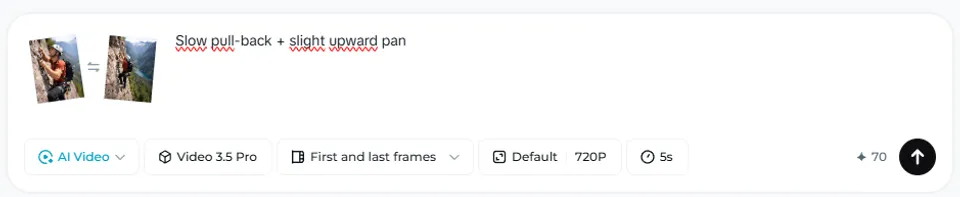
This is the most straightforward approach. Upload one image as the starting frame, optionally add an ending frame, and describe what happens in between.
How to Use It
- Open Dreamina → Video Generation → Seedance 2.0
- Select "First Frame / Last Frame" mode
- Upload your image as the start frame (optionally add an end frame)
- Write your motion/action prompt
- Aspect ratio locks to your uploaded image dimensions
- Set duration (up to 15 seconds) and generate
Example: Fight Scene from Two Frames
Upload a casino interior as the first frame and a destroyed casino as the last frame. Prompt: "These are the opening and closing scenes of a fight scene in a casino. Generate a smooth sequence of a man in a white kung fu outfit fighting several men in black suits. Use different shots and perspectives for a cinematic feel. Intense fight, high action."
Seedance generates the entire choreographed fight sequence between your two reference points, with accurate physics, multiple camera angles, and synchronized combat audio.
Example: Drum Solo from a Photo
Upload a photo of a drummer. Prompt: "He is playing an impressive drum solo." Seedance generates the performance with audio perfectly synchronized to the visual hits—high-hats sound like high-hats, snare hits sound like snare hits.
All-Round Reference Mode (@ Tag System)
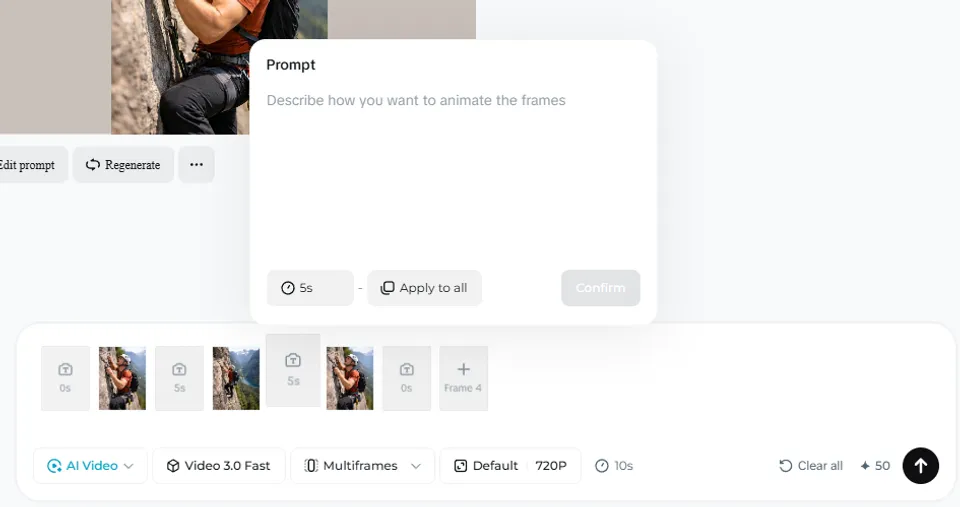
This is the most powerful mode, unique to Seedance 2.0. Upload up to 9 images and reference each one with @ tags in your prompt. Each image serves a specific role: character appearance, background environment, product design, or style reference.
How to Use It
- Select "All-Round Reference" mode in Seedance 2.0
- Upload your reference images (up to 9)
- Each receives an automatic tag: @Image1, @Image2, etc.
- Write your prompt, referencing each image by its tag
- Choose aspect ratio and duration freely (not locked to image dimensions)
- Generate
Example: Anime Fight Between Two Characters
Upload character A and character B reference images. Prompt: "@Image1 and @Image2 are fighting in a desolate cratered landscape. Anime style, intense fight, high action, dynamic movement."
The model generates a complete anime fight sequence maintaining both character designs—outfits, hair styles, color palettes—throughout the entire clip.
Example: Character + Background
Upload a character image plus a location photo. Prompt: "@Image1 is running through @Image2 background. The character and camera movement should be dynamic and cinematic."
Example: UGC Product Video
Upload a person's photo and a product photo. Prompt: "UGC video of @Image1 talking about @Image2 face lotion called Silky. She applies the cream while speaking casually. Phone perspective." Seedance generates a realistic influencer-style video with the product matching your reference photo exactly.
Example: Product Commercial
Upload a single product photo. Prompt: "Commercial for noise-cancelling earbuds called Peace. @Image1 is the product. Show real-life scenarios of people using it." Seedance generates a complete ad with scene transitions, the product matching your reference, and even on-screen text.
Character Consistency
This is one of Seedance 2.0's strongest features. When you upload character reference images, the model maintains visual identity with remarkable precision:
- Clothing details stay locked throughout—complex outfits with patterns, accessories, and colors are preserved
- Physical features remain consistent—face, hair, body proportions don't drift
- Style matching works across genres—anime characters stay anime, realistic characters stay realistic
- Multi-character scenes keep each character distinct, even during fast action
For best results, upload clear reference images with distinctive visual features. The more complex and unique the character design, the easier it is for the model to maintain consistency.
Advanced Techniques
3D Previz as Motion Guide
Create a rough 3D scene in any software, export as video, and upload alongside character reference images. Prompt: "Use the motion of @Video1. Characters are @Image1 and @Image2. They are fighting in a forest. Use the camera movement in the 3D video as well." This gives you precise control over choreography and camera path, virtually eliminating motion errors.
Manga/Storyboard to Video
Upload a manga page or storyboard grid as a single image. Prompt: "Include all the scenes in @Image1. Generate a continuous anime video following the panel sequence." The model reads panel layout and generates sequential scenes. Not panel-perfect, but captures the overall narrative flow.
Expression Transfer
Upload a video showing expressions and a character image. The model maps facial performance from the video onto your character while maintaining character identity. Ideal for giving animated characters realistic emotional performances.
Multi-Character Dialogue
Upload reference images for each character and assign dialogue. Seedance handles multi-character conversations with distinct voices, appropriate lip-sync, and natural turn-taking between speakers.
Image Input Best Practices
| Tip | Why It Matters |
|---|---|
| Use high-resolution images (1024px+) | Higher detail = better character recognition and consistency |
| Clear, well-lit reference photos | Reduces artifacts and flickering in output |
| Distinctive character features | Unique outfits/colors help the model maintain identity |
| Match prompt to image content | Don't describe things that contradict your reference image |
| One subject per reference image | Multiple subjects in one image can confuse character assignment |
What Changed from Seedance 1.0
| Feature | 1.0 | 2.0 |
|---|---|---|
| Image inputs | 1 image | Up to 9 images via @ tags |
| Reference role control | First frame only | Character, background, product, style—any role |
| Audio | Silent | Native audio with lip-sync |
| Duration | Up to 10 seconds | Up to 15 seconds |
| Resolution | Up to 1080p | Up to 2K |
| Character consistency | Moderate | Excellent across complex scenes |
Known Limitations
- Occasional extra objects: In complex fight scenes, extra weapons (e.g., an additional sword) can sometimes appear—using 3D previz as motion reference largely eliminates this
- Text on products: Text rendering on product labels is improving but not perfect—small text may contain noise
- Long processing times: Multi-reference generations with 15-second duration can take up to 10 minutes
- Aspect ratio lock: In First/Last Frame mode, the aspect ratio is determined by your uploaded image—you can't override it
What to Expect
How many images can I upload?
Up to 9 images in All-Round Reference mode. First Frame / Last Frame mode accepts 1-2 images. You can also combine images with up to 3 videos and 3 audio files for a total of 12 references.
Does image-to-video generate audio?
Yes. Seedance 2.0 generates audio natively—dialogue, sound effects, ambient sounds, and music—synchronized with the video content.
Will the model change my image's art style?
In reference mode, Seedance preserves the visual style of your reference images. An anime character stays anime; a realistic photo stays photorealistic. You can override this with style prompts if needed.
Can I animate a product photo into a commercial?
Yes—this is one of the strongest use cases. Upload your product photo and describe the ad concept. Seedance generates complete commercials with scene transitions, people interacting with the product, and even on-screen text.
What's the difference between first-frame mode and all-round reference?
First-frame mode treats your image as the exact opening shot and animates forward from it. All-round reference treats images as visual references that inform the generation but don't dictate the exact first frame. Use first-frame for precise control of the opening shot; use all-round for creative scenes with multiple references.
How do I keep characters consistent across multiple generations?
Always upload the same reference images with the same @ tag assignments. The Prompt Guide has detailed tips for maintaining character consistency across longer projects.
For the complete prompt framework and copy-paste templates, see the Prompt Guide. For access methods and costs, visit our Pricing page.